AI Image Editor

Describe the change. Keep everything else.

Upload a photo, add up to three more references if you need them, and write what should be different. PixMythos tries to preserve the subject and composition of the image you gave it instead of generating a new one from scratch.

Model: GPT-Image-2 · Up to 4 reference images · Choose aspect ratio and size · Uploads are private to your account

Edit, don't regenerate

Most AI image tools start over every time you press the button. That is fine for making something new, but it’s the wrong tool when you already have a photo you like and want to change one thing in it.

The editor works the other way around. You give it the image, and you tell it what to change and what to leave alone. The better your instruction separates the two, the closer the result stays to your original.

Five real edits

Each example shows the exact prompt we used, so you can reuse it or adapt it. Every pair below was made in the editor from the image or images on the left.

01

Replace a background
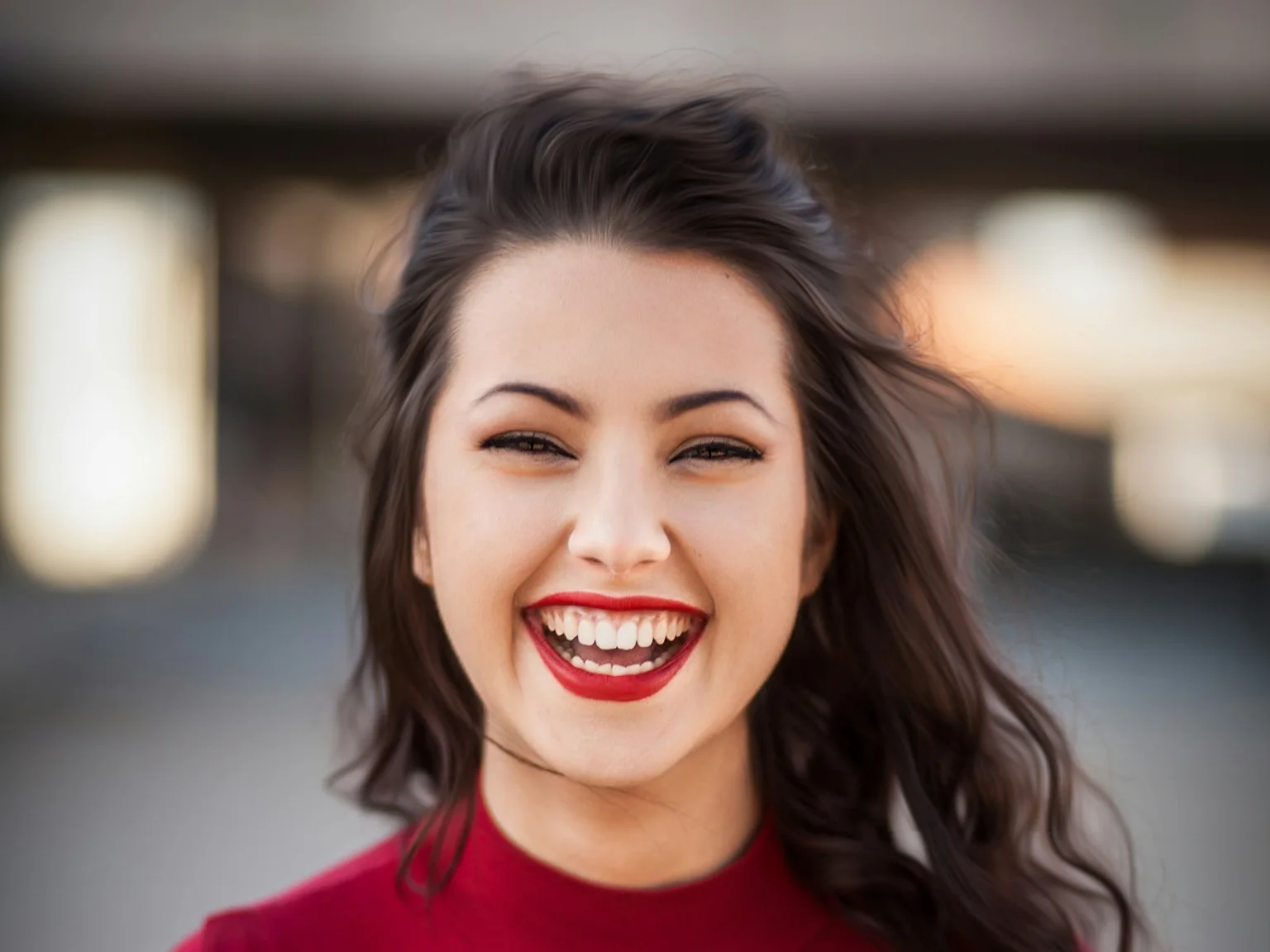
Portrait of a smiling woman before changing the background.
Before
The same woman after replacing the background with an overcast city street at dusk.
After

Prompt

Keep the woman's face, hair and clothing exactly as they are. Replace the background with an overcast city street at dusk. Match the lighting on her to soft, cool daylight.

What changed: The background and the light on the subject. What stayed: Face, hair and clothing.
02

Add or remove an object

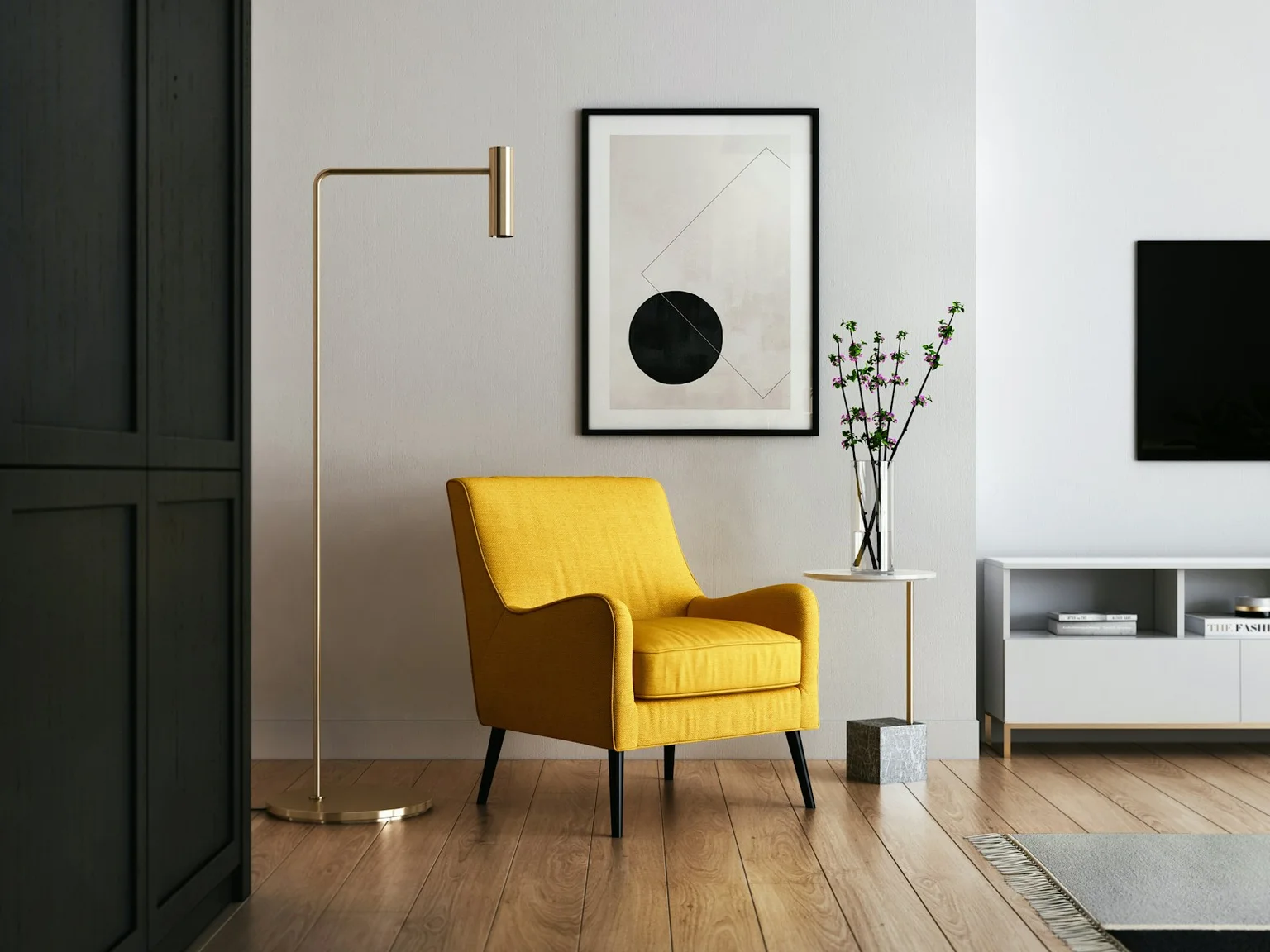
Living room with a yellow chair and a brass floor lamp before object removal.
Before
The same living room after removing the brass floor lamp.
After

Prompt

Remove the brass floor lamp on the left. Leave the rest of the room untouched, and fill the space with the same wall and wood floor texture.

What changed: One object. What stayed: Chair, side table, artwork, walls and wood floor.

03

Restyle a photo

Photo of a cabin beside a lake before restyling.
Before
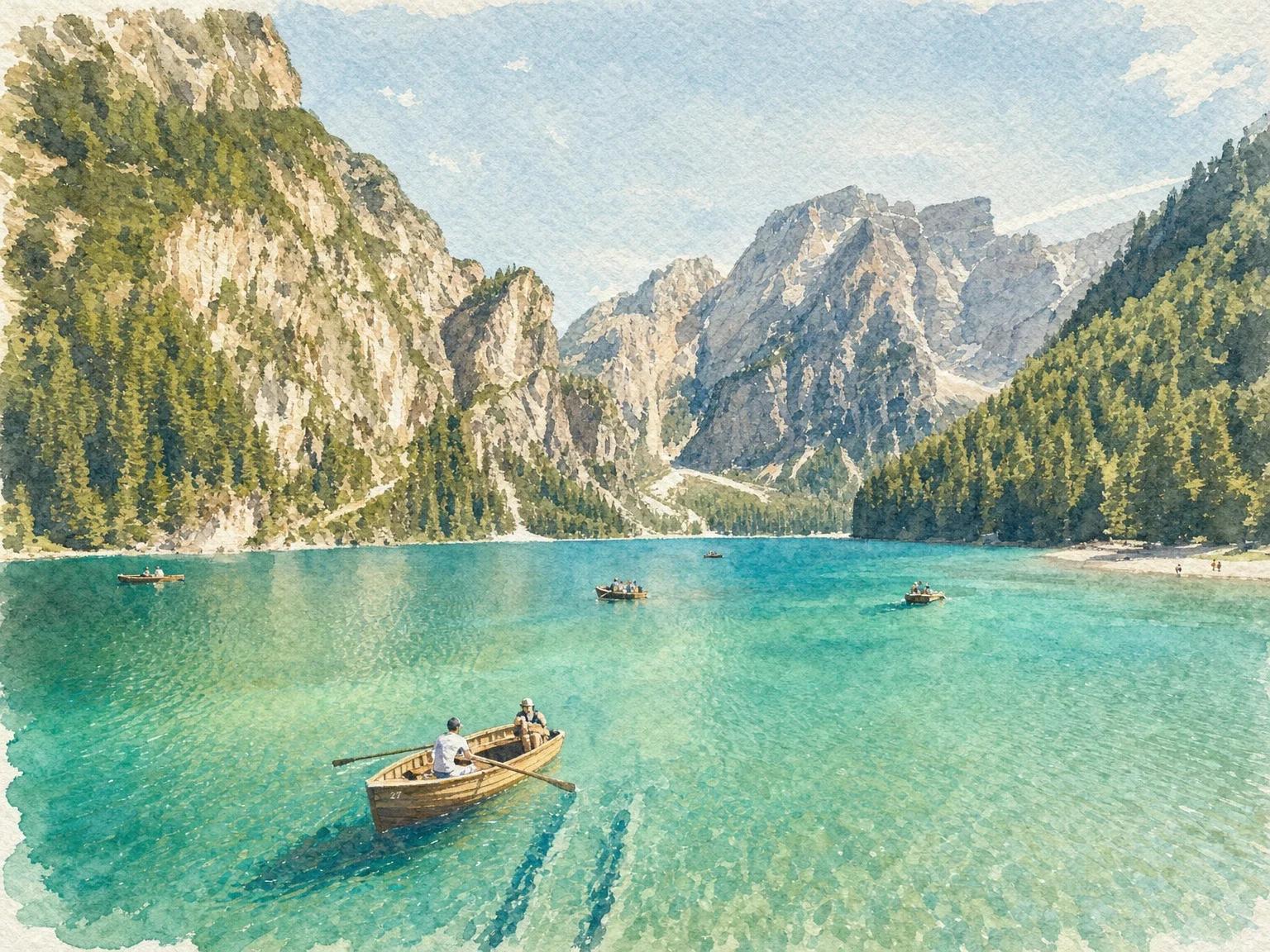
The same cabin scene redrawn as a soft watercolor painting.
After

Prompt

Redraw this photo as a soft watercolor painting. Keep the composition and the position of every object. Use muted colors and visible paper texture.

What changed: Rendering style. What stayed: Composition and object placement.

04

Place a product in a new scene

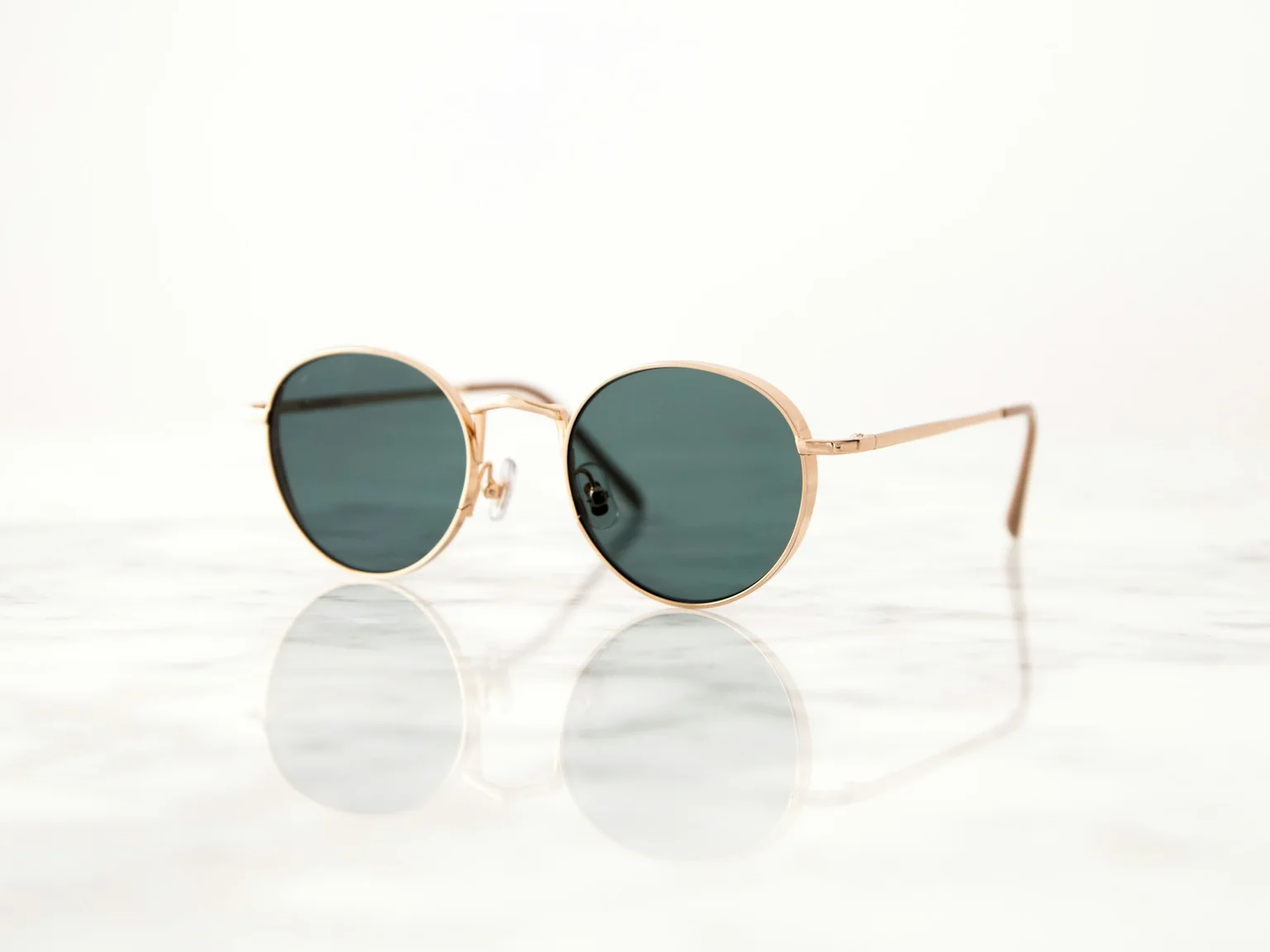
Round gold sunglasses on a white surface before placing them in a new scene.
Before
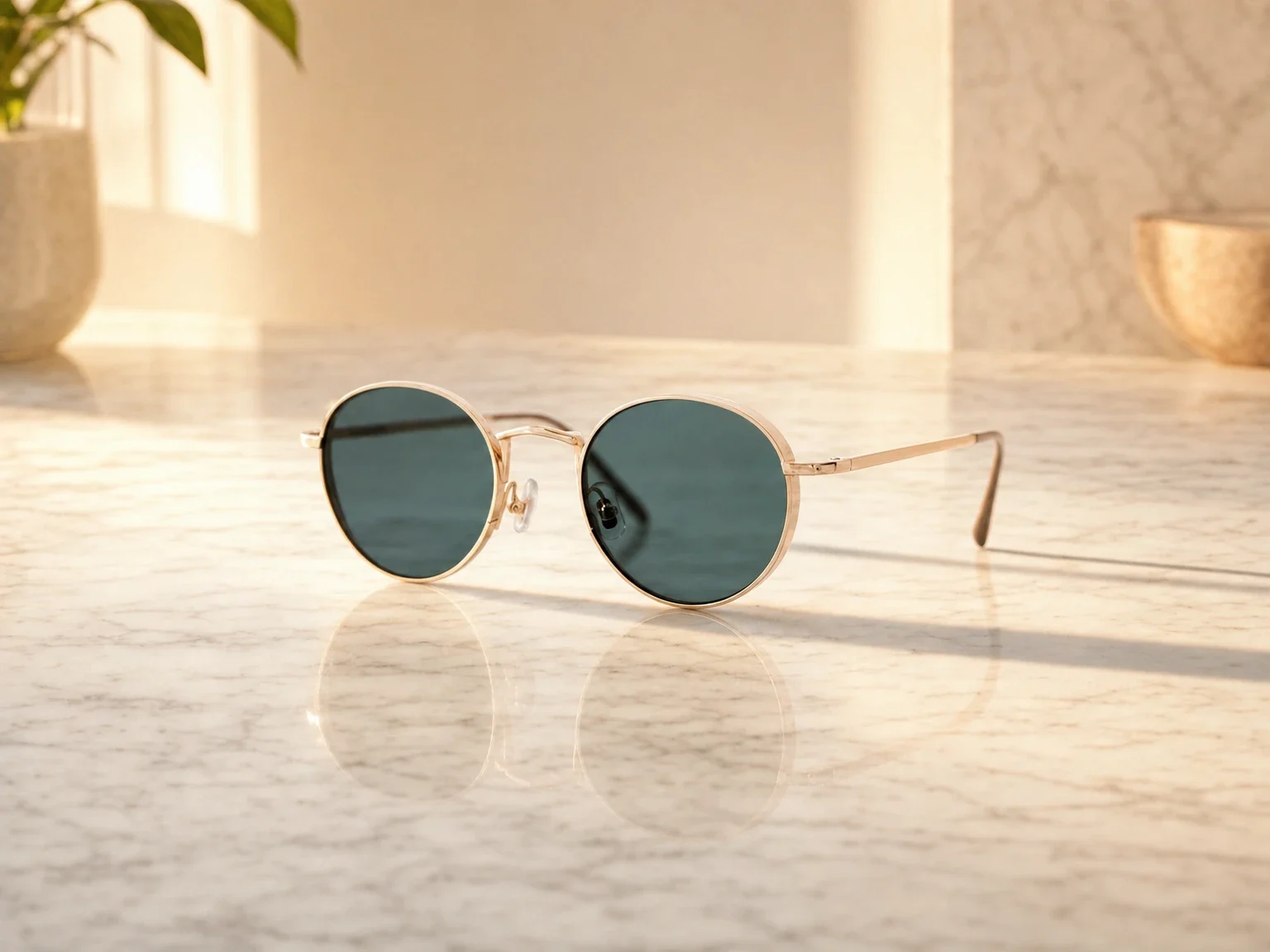
The same sunglasses on a marble countertop in warm morning light.
After

Prompt

Keep the sunglasses' shape, lenses and gold frame exactly as they are. Place them on a marble countertop with warm morning light coming from the left and a soft shadow.

What changed: Setting and lighting. What stayed: The sunglasses' shape, lenses and gold frame.

05

Combine two references

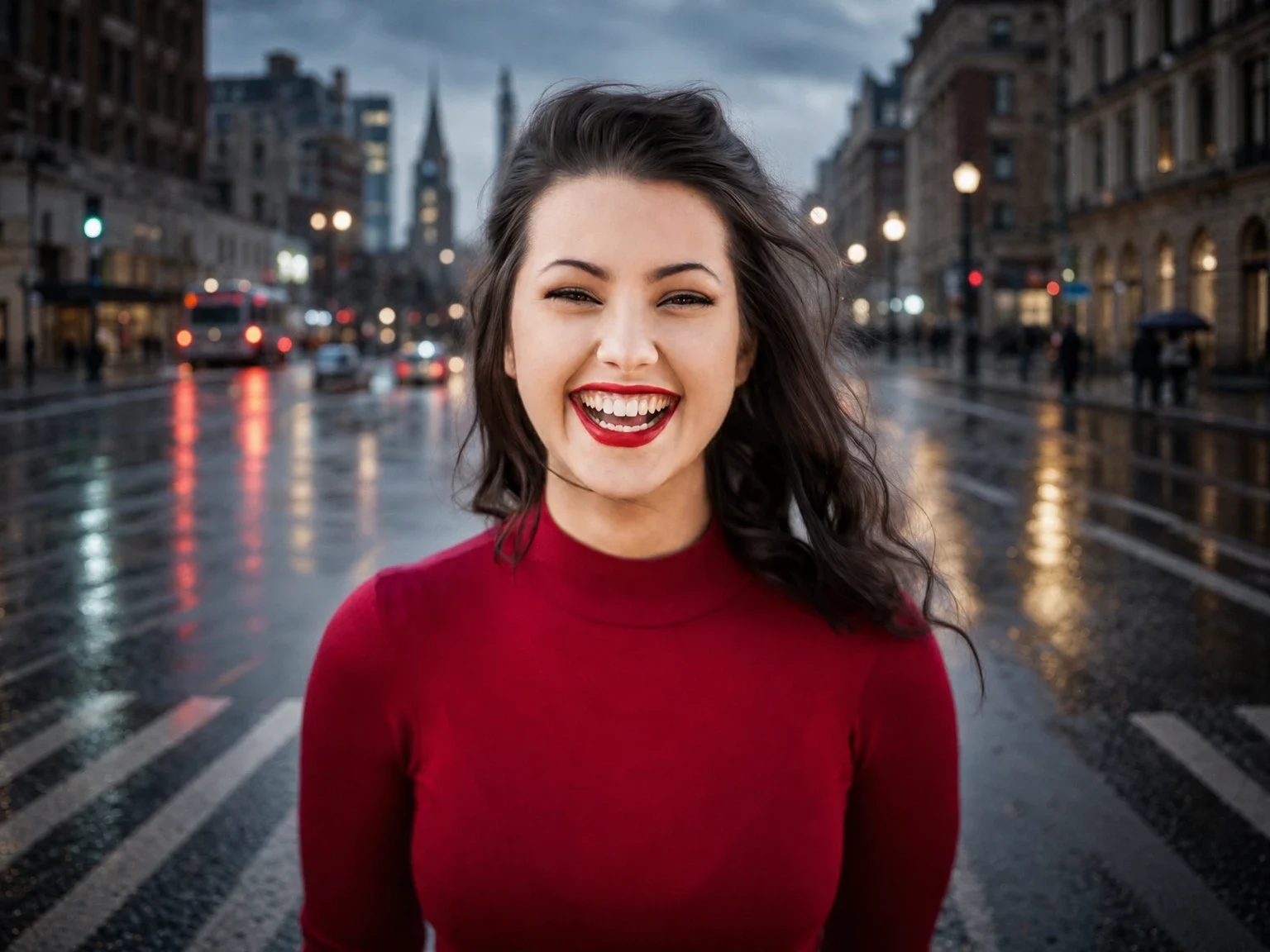
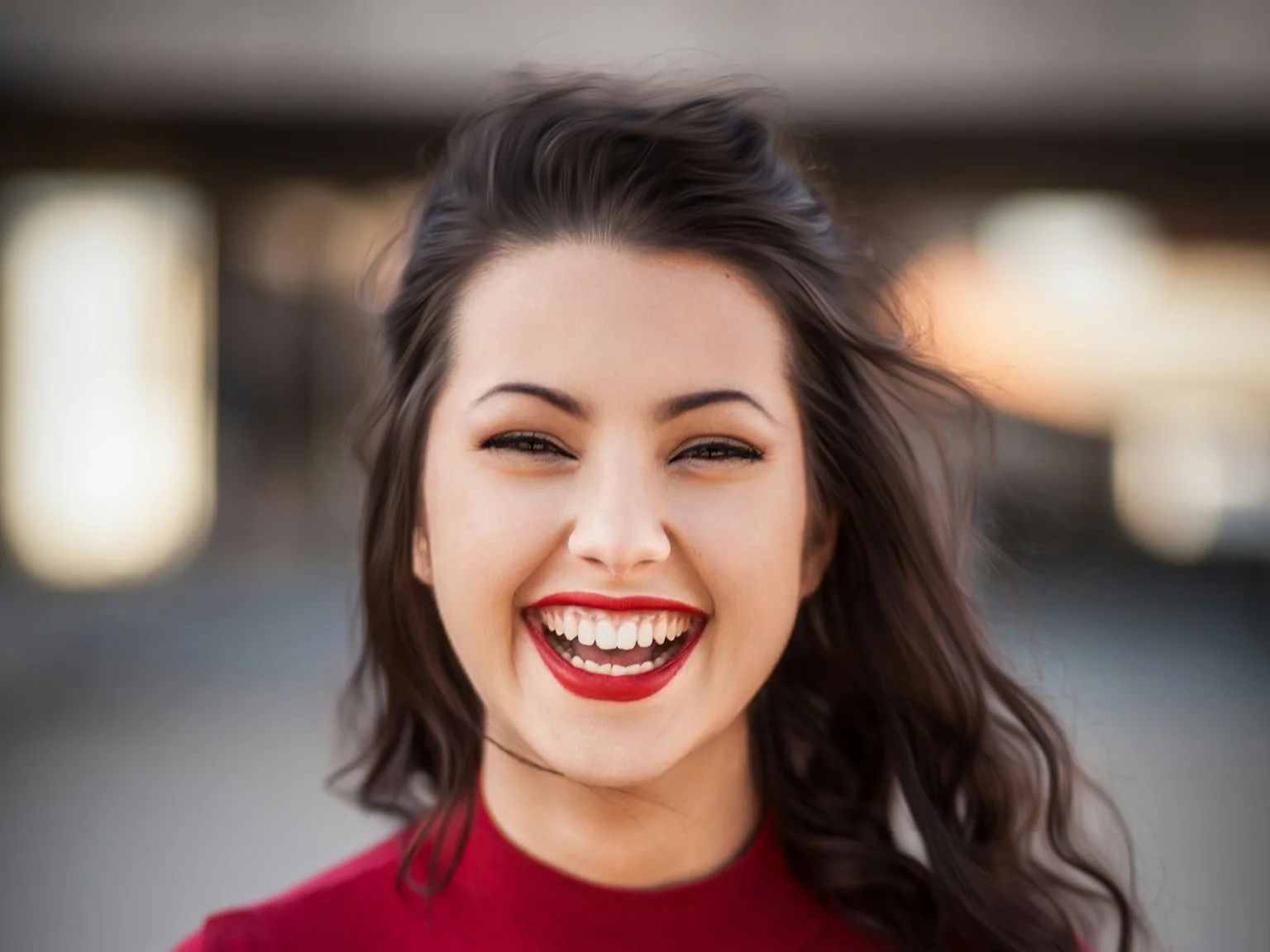
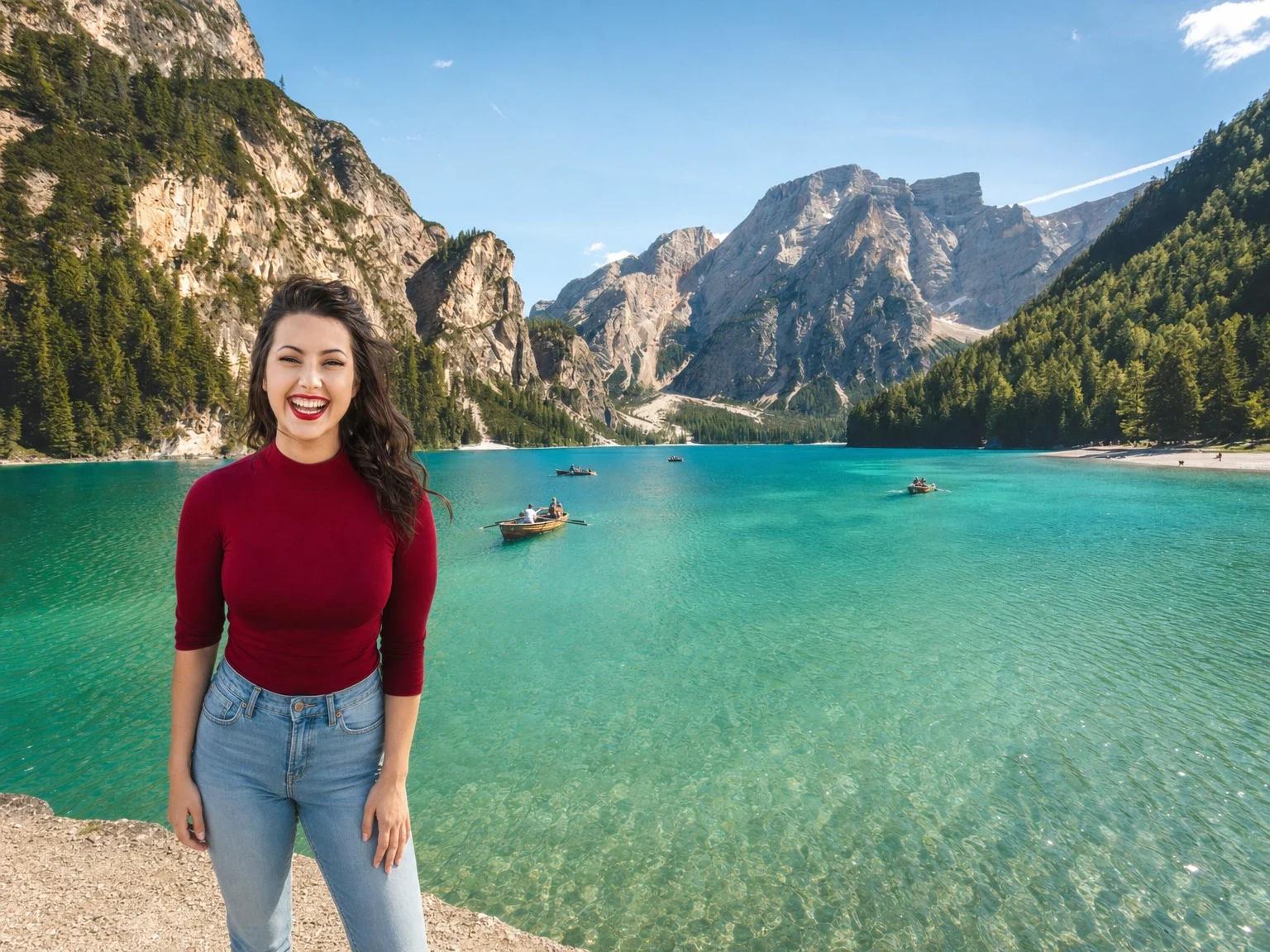
Reference 1: portrait of a smiling woman.
Reference 1
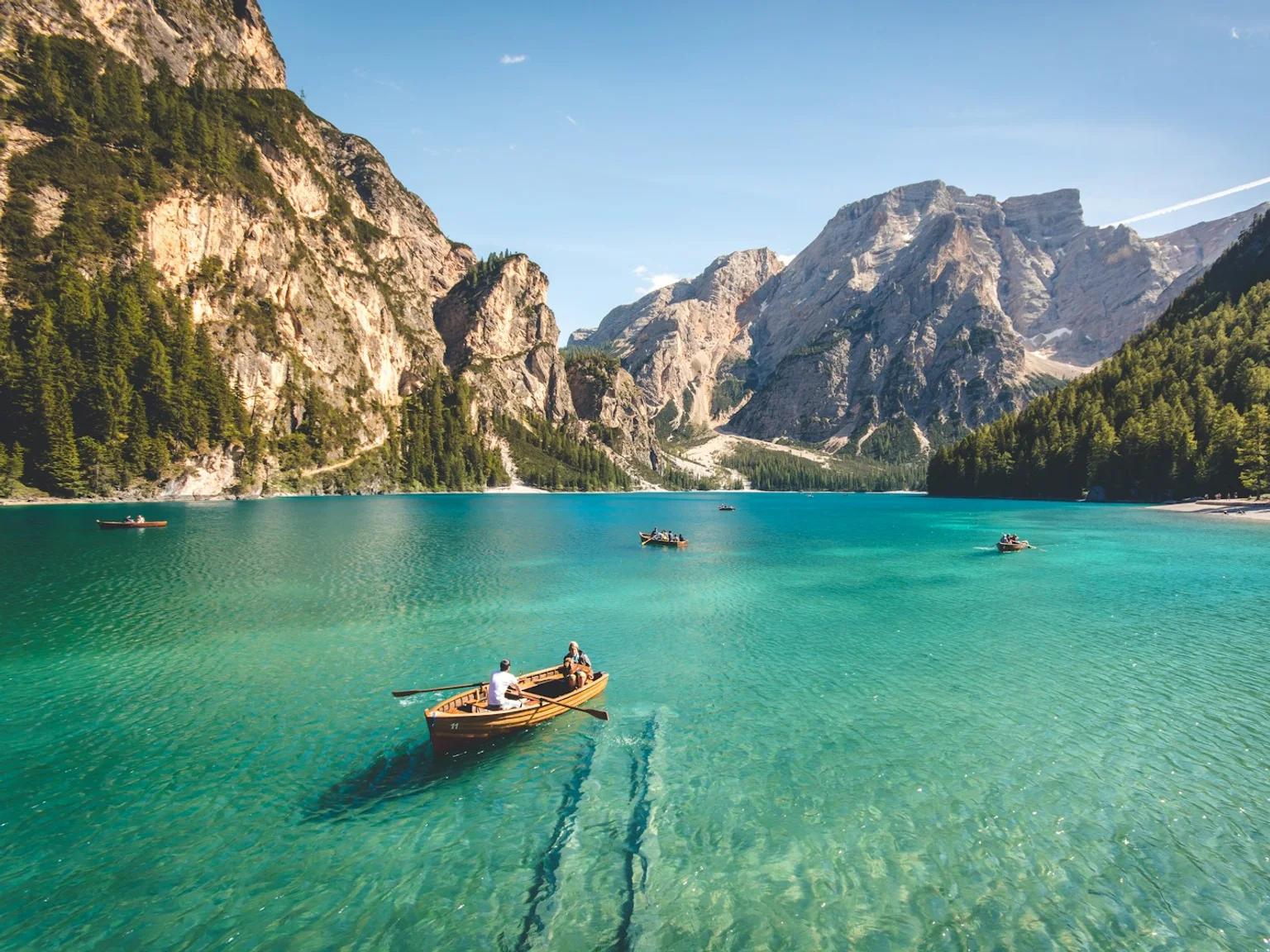
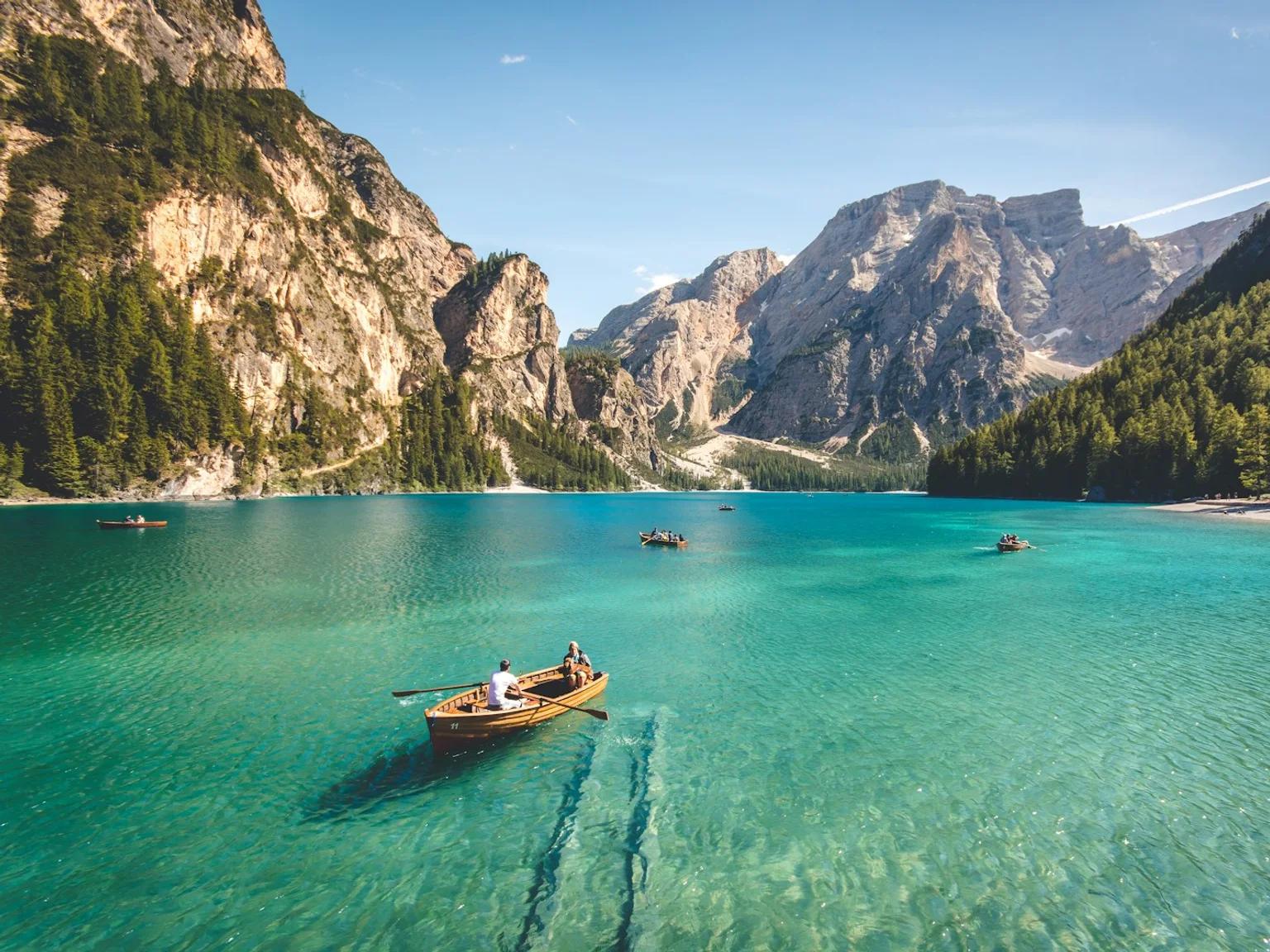
Reference 2: mountain lake with boats.
Reference 2
The woman from reference 1 placed in the lakeside location from reference 2.
Result

Prompt

Use the person from image 1. Place them in the location shown in image 2, standing near the left edge. Match the lighting to image 2.

What changed: Location and lighting. What stayed: The person from image 1.

How to write an edit prompt

Good edits come from instructions that say three things: what to keep, what to change, and what to match.

Keep

Protects what you don't want touched

“Keep her face, hair and clothing exactly as they are.”

Change

Describes the one thing to be different

“Replace the background with a rainy street at night.”

Match

Makes the change fit the original

“Match the lighting and perspective of the original photo.”

A weak prompt

Change the background.

A stronger prompt

Keep the man’s face, jacket and pose exactly as they are. Replace the background with a quiet harbor at sunrise. Match the lighting on him to warm, low sunlight from the right.

The second prompt gives the model less room to guess, so there is less to go wrong.

Working with several images

Refer to each image by number: “the person in image 1”, “the jacket from image 2”, “the background in image 3”. If you don’t say which image does what, the model has to guess.

Change one thing at a time

For large edits, run them in steps. Replace the background first, then adjust the lighting in a second pass. Each step is easier to control than one long prompt.

What to expect

AI image editing is probabilistic. Knowing where it struggles saves you credits.

  • The same prompt can give different results.

    Generate more than once and pick the best.

  • Small text and logos may change.

    If your image contains fine print, a label or a logo, check it carefully in the result.

  • Faces and hands in busy scenes can need a second pass.

    Zoom in before you use the image.

  • Very large changes work better in steps.

    See “Change one thing at a time” above, then refine the result in another pass.

FAQ

Short answers to common questions about editing images with AI.

Does the editor change parts of the image I didn't mention?

It tries not to, but nothing guarantees it. Say clearly what should stay the same, and check the result before you use it.

How do I get a more consistent result?

Use a clear, high-resolution source image, say what to keep, and change one thing per edit. See the guide above.

Can I edit a photo of a person?

Yes, within our acceptable use policy. Only upload images you have the right to use.

Who can see my images?

Only your account. Your uploads and edit history are visible only to the account that created them.

Need an image from scratch first? Try the AI image generator.